
Dashboard, Tray & Quitting
The menu bar icon
Section titled “The menu bar icon”Amee runs with a menu-bar icon for its entire lifetime. Clicking it shows a menu with:
- Show Player — shows and focuses the floating mini player (useful if you’ve hidden it).
- Settings… — opens the Dashboard.
- Version: X.X.X — the running build’s version (for quick reference without opening About).
- Check for Updates… — manually triggers an update check.
- About Amee — opens the Dashboard and selects the About tab.
- Quit Amee
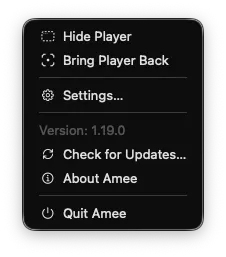
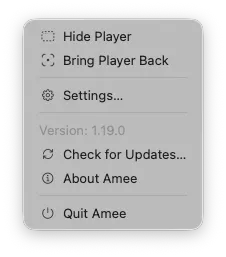
The Dashboard
Section titled “The Dashboard”The Dashboard is Amee’s settings window. It doesn’t open at launch — reach it from the menu-bar icon’s Settings…, from the Open settings global shortcut (⌃⌘, by default), or from a skin calling amee.openSettings(). It has four tabs:
- General — behavior toggles and global shortcuts (below).
- Skin — the skin switcher, with install/update/export/delete and a link to the skin store. See Skins.
- Extension — the browser extension’s connection status and its kill switch. See Browser Extension.
- About — version info, update status, and links.
General settings
Section titled “General settings”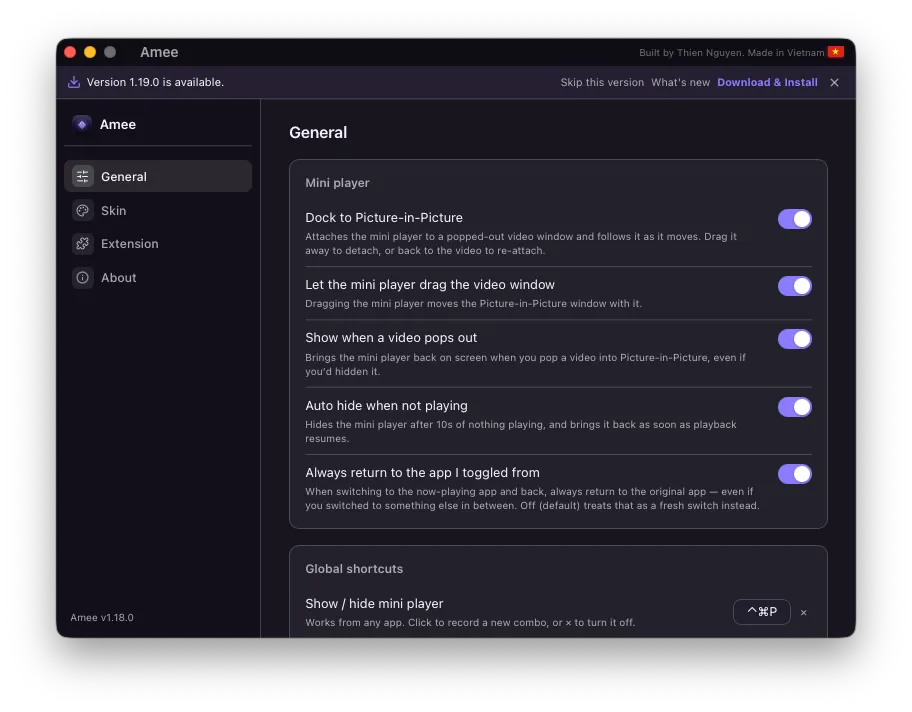
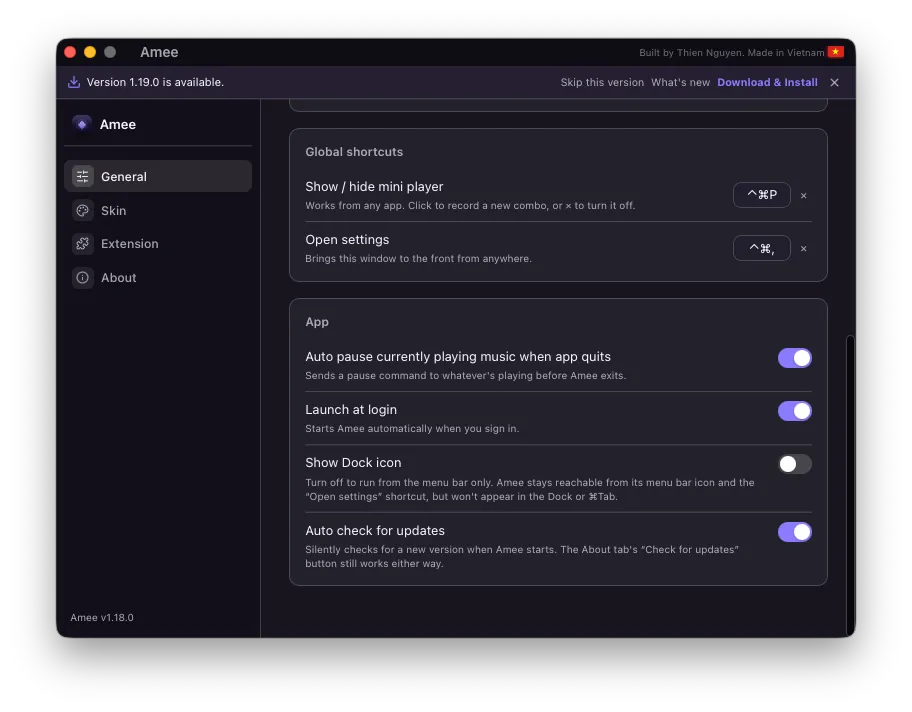
Settings are organized into three groups:
Mini player:
- Dock to Picture-in-Picture — attaches the mini player to a popped-out video window and follows it as it moves. Drag the pill away to detach, drag it back to re-attach. Needs the browser extension; the row tells you so, with a button through to the Extension tab, when it can’t currently work.
- Let the mini player drag the video window — dragging the mini player moves the Picture-in-Picture window along with it. Needs macOS Accessibility access, which the row prompts for; a grant that’s later revoked shows the toggle as off without discarding your choice, so it resumes on its own once access comes back.
- Show when a video pops out — brings the mini player back on screen when you pop a video into Picture-in-Picture, even if you’d hidden it. Also needs the extension.
- Auto hide when not playing — hides the floating mini player after 10 seconds of nothing playing, and brings it back as soon as playback resumes. See Now Playing.
- Always return to the app I toggled from — controls how
toggleNowPlayingApp()behaves when you’ve manually switched apps in between. See Now Playing.
Global shortcuts:
Both work from any app. Click a row to record a new combo, or ✕ to turn it off.
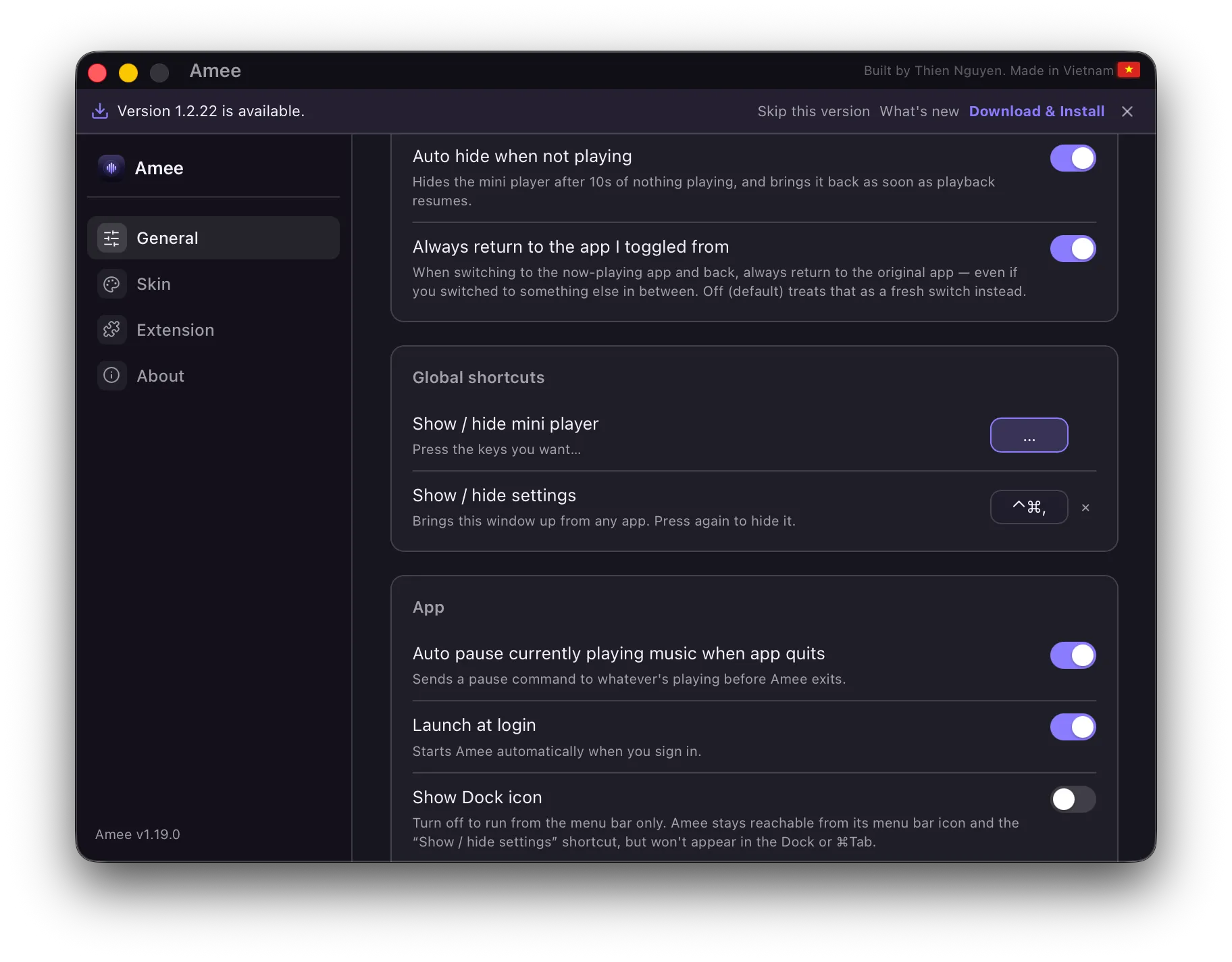
| Action | Default |
|---|---|
| Show / hide mini player | ⌃⌘P |
| Open settings | ⌃⌘, |
The defaults sit in the ⌃⌘ namespace deliberately — a global hotkey is taken from whichever app is focused, so the usual ⌘⇧/⌥⌘ combos are the wrong place to squat. A combo another running app already owns can fail to register; whoever registered it first wins, and the settings row tells you so at the moment you bind it. The tray menu still does everything a shortcut does either way.
App:
- Auto pause currently playing music when app quits — on by default. See Now Playing.
- Launch at login — starts Amee automatically when you sign in. This stays in sync if you change it instead from System Settings → General → Login Items.
- Auto check for updates — silently checks for a new version when Amee starts. The About tab’s “Check for updates” button still works either way.
About tab
Section titled “About tab”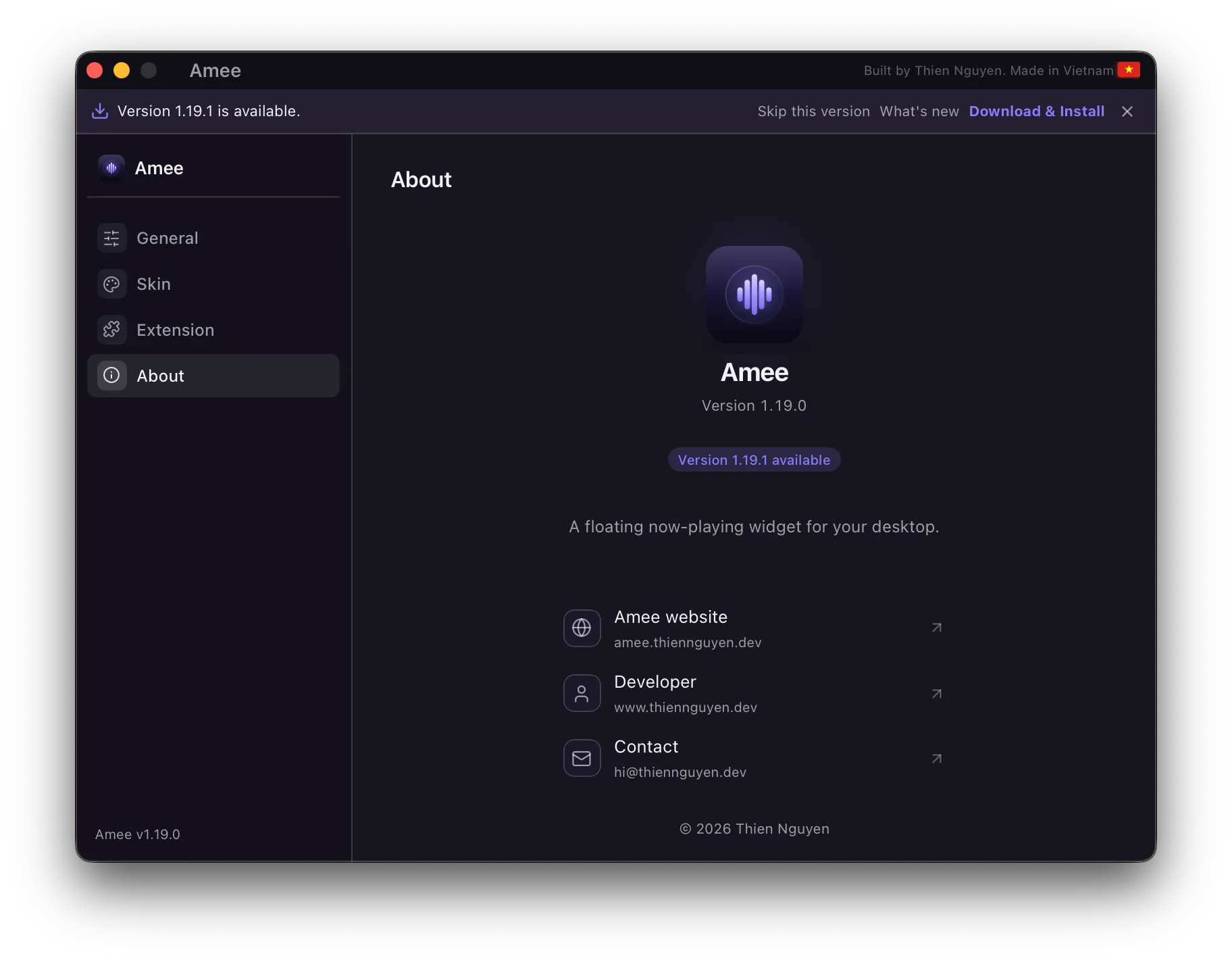
Shows Amee’s version number, update status (with download/install controls when an update is available, and a Skip this version option), a short description, and links: the Amee website, the developer’s site, and a contact address. The update check can also be triggered from the tray menu’s “Check for Updates…” item.
Quitting Amee
Section titled “Quitting Amee”You can quit from the menu-bar icon’s “Quit Amee,” the app menu, or ⌘Q — all behave the same way:
- If auto pause on quit is on, sends a pause command to whatever’s playing first.
- If the active skin supports it, gives it a brief moment to finish up (a fade-out animation, a final save) before actually closing.
Quitting again while Amee is still finishing up closes it immediately, rather than making you wait.