
Browser Extension Privacy Policy
Extension: Amee Now Playing Last updated: 11 August 2026
This policy covers the Amee Now Playing browser extension for Chrome and Microsoft Edge. The Amee desktop app is covered separately.
The short version
Section titled “The short version”The extension reads what is playing on a short list of media sites and hands it
to the Amee app running on the same computer. It sends that information to one
place only: http://127.0.0.1:17420, an address that never leaves your machine.
You can switch any of those sites off, and there is a second list of sites you
can switch on — each one behind the browser’s own permission prompt.
There is no server on our side. We do not receive your data, cannot see it, and have nothing to sell. No analytics, no tracking, no advertising identifiers, no third-party services of any kind.
What the extension reads
Section titled “What the extension reads”Only on media sites, and only on two lists of them.
The built-in list, which the extension can read as soon as it is installed:
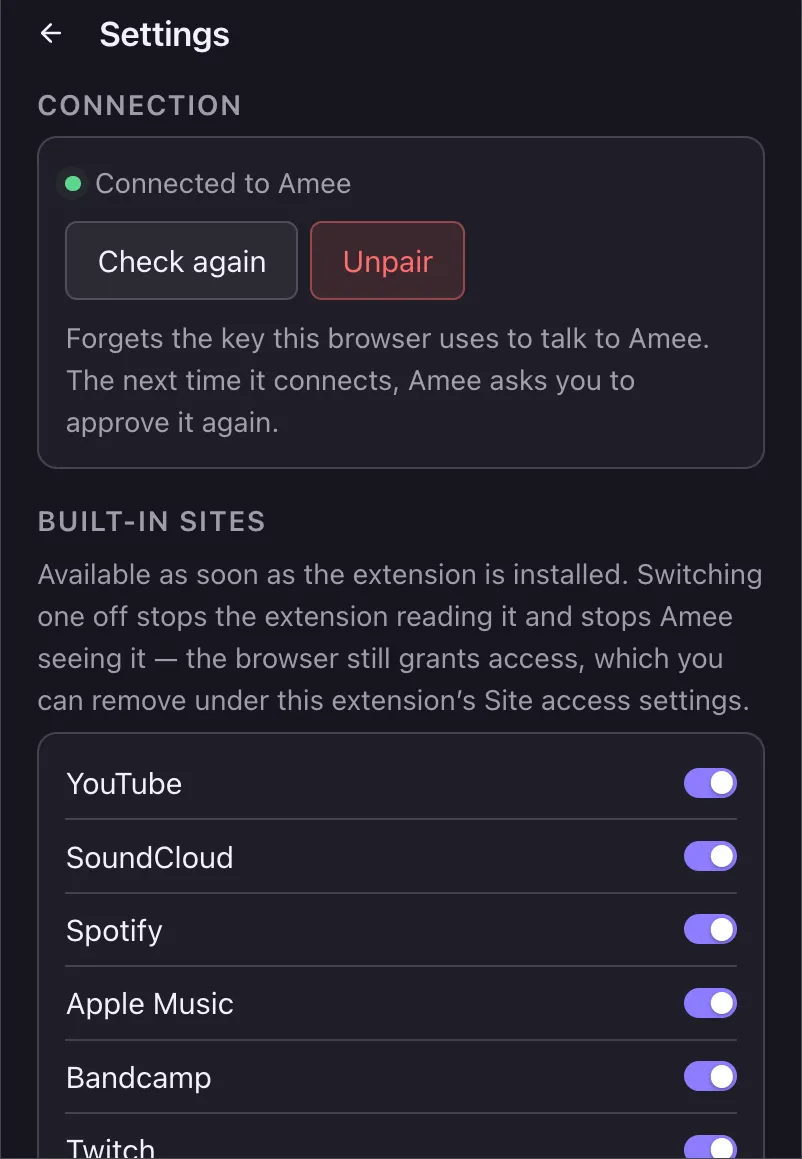
YouTube · Facebook · SoundCloud · Spotify Web Player · Apple Music · Bandcamp · Twitch · Vimeo · Deezer · TIDAL · Zing MP3 · NhacCuaTui
The optional list, which the extension cannot read unless you turn a site on yourself. Turning one on makes the browser show you its own permission prompt naming that site; nothing is granted by installing the extension, and you can take the permission back at any time from the browser’s extensions page. The optional list is fixed in the extension too — it is a set of sites you may choose from, not a box you can type any address into.
Both lists are shown, with their current state, in the extension’s settings — the gear icon in its popup.
On a page from a site on either list, it reads:
- What the page declares about the current track — title, artist, album, and the
address of the cover art — from the standard
mediaSessionbrowser interface - The state of the audio or video element — whether it is paused or muted, how long the track is, how far into it you are, and whether the video is in Picture-in-Picture
Across your browser generally, it reads the address and title of tabs that are playing sound, plus which window each one is in. This is how Amee can tell which tab is the one you are listening to, and jump to it when you click the cover art.
Switching a site off in the settings removes it from this entirely: the tab is dropped before anything is sent, so Amee stops seeing that site’s addresses and titles as well as its track information.
What it does not read
Section titled “What it does not read”Page content other than the media state above. Form fields. Passwords. Browsing history. Cookies. Pages on any site outside the two lists above — the extension has no permission to read them, so this is enforced by the browser and not a promise. The same is true of a site on the optional list you have not turned on, and of one whose permission you have taken back.
Switching off a site from the built-in list is a different kind of promise, and worth stating plainly: the browser still grants the extension access to it, and what changes is that the extension stops reading it and stops telling Amee about it. If you want the browser itself to enforce it, remove that site under the extension’s Site access settings in your browser.
Where it goes
Section titled “Where it goes”To the Amee app on the same computer, over a local connection.
127.0.0.1 is your own machine by definition: traffic to it cannot leave the
device, and no network, router, or internet provider can observe it.
Amee only accepts this data after you approve it once, in a prompt Amee itself shows, naming the extension. Approving stores a random token in the extension so you are not asked again. Declining stops the extension asking again for ten minutes.
Each browser you install the extension in is approved separately and holds its own token — one browser’s approval is not another’s.
One consequence worth stating plainly: because a page names its cover art by address rather than sending the image, the Amee app fetches that image from the site’s own servers so it can display it. That request comes from your machine to the music service you are already using.
The extension’s own popup does the same when you open it, for the same reason —
it shows the cover art of what is playing, and the image lives on the media
site’s servers. So 127.0.0.1 is the only place information about your media
is sent, but it is not the only address the extension fetches from. Cover art is
requested without a referrer, and only for media you are already playing.
The Picture-in-Picture button
Section titled “The Picture-in-Picture button”On video sites, the extension can show a small button over the player that pops the video out into Picture-in-Picture. It exists because the browser will only open Picture-in-Picture in response to a real click on the page itself — Amee cannot ask for it, which is the whole reason the button is there rather than in Amee’s own window.
To know when to reveal the button, the extension checks whether your pointer is currently over the video. That position is read as it happens and used to show or hide the button; it is not stored, not logged, and not sent anywhere. The button can be turned off entirely, or per site, in the settings.
What is stored, and for how long
Section titled “What is stored, and for how long”| Stored | Where | Cleared when |
|---|---|---|
| The most recent list of playing tabs, so the extension’s popup can show it | Browser session storage | You close the browser |
| Whether Amee is currently reachable, so the popup and the toolbar icon can show it | Browser session storage | You close the browser |
| Your settings: which sites are on or off, which optional sites you have turned on, and your Picture-in-Picture button preferences | Browser local storage | You remove the extension, change them back, or use Reset in its settings |
| The token that authorises this extension to talk to Amee | Browser local storage | You remove the extension, or unpair. If Amee stops recognising the token, the extension discards it and asks you to approve again |
Nothing else is kept. Your settings are a list of site names and switches — they record what you chose, not what you played. There is no history, no log of what you have listened to, and no record of any of it once the browser closes.
Turning it off
Section titled “Turning it off”- Switch off individual sites in the extension’s settings. Amee stops seeing them; see What it does not read for exactly what that does and does not mean.
- Take back an optional site’s permission from your browser’s extensions page. The extension notices, stops reading that site, and keeps the row in its settings so you can grant it again later.
- Unpair, under Connection in the extension’s settings. This discards the stored token; the next time the extension contacts Amee, Amee asks you to approve again.
- Uninstall the extension. This also deletes the stored token, since it lives in the extension’s own storage. Amee keeps working on its own: it reads system media information from macOS directly, and the extension only ever added to that. Nothing about Amee depends on it.
- Turn it off from Amee’s side. Use what my browser is playing, under Settings → Extension in the Amee app. Off, Amee refuses every request from the extension without you having to uninstall it. Disconnect, in the same place, discards Amee’s side of the approval instead — each browser the extension is installed in is approved separately, and this forgets all of them.
Permissions, and why each exists
Section titled “Permissions, and why each exists”| Permission | Why |
|---|---|
tabs |
Reading title and url for tabs that are playing sound. Without it the browser hands back the tabs with both fields stripped, and Amee cannot tell which tab is playing. |
storage |
Holding the items in the table above. |
scripting |
Three things. Re-inserting the reading code into pages you already have open after the extension updates — browsers remove it on update and do not put it back, which would otherwise silently blind Amee until you reloaded each page. Starting that same code on an optional site once you have turned it on and the browser has granted it. And the popup’s pop-out button, which injects one short function that puts the page’s video into Picture-in-Picture: the browser only opens Picture-in-Picture in response to a real click, and injecting from that click is what carries it through to the page. Everything injected ships inside the extension — never remote, never generated. |
alarms |
Waking the extension’s background worker after the browser has shut it down, so it recovers on its own when Amee restarts. |
| Access to the built-in media sites | Reading the media state on those pages. Granted when you install. |
| Access to an optional media site | The same, on a site you turned on yourself. Granted by the browser’s own prompt, one site at a time, and revocable from the browser’s extensions page. Never requested at install. |
Access to 127.0.0.1:17420 |
Talking to Amee. |
Changes
Section titled “Changes”Material changes to this policy will be published here and reflected in the extension’s store listing before the version they apply to is released.
Contact
Section titled “Contact”Questions about this policy, or about what the extension does: [email protected]